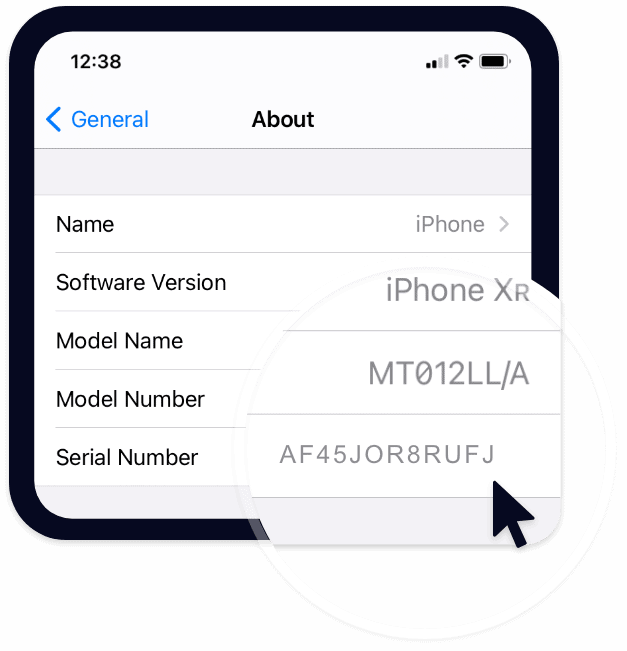
To get started with porting your number, make sure you have the following information from your current carrier:
Account Number: Found on your Verizon billing statement or inside your My Verizon account under Account Overview. If you have a legacy or business account, it may include letters—check your bill or contact Verizon if unsure.
Use any of these methods to get a Number Transfer PIN:
Important:
*If you don't have the phone which has the number you want to transfer, you can use another smartphone, tablet or computer. Follow the My Verizon website steps above.
** If you or a loved one need to move mobile lines due to intimate partner violence or abuse, call Customer Service at 800-922-0204. Learn more about Managing your Verizon mobile line in a domestic violence situation.
Generate a Number Transfer PIN for each line to be ported out in My Business.
Tell your new carrier which lines you want to move. Number Transfer PINs are unique to each line you port out.
Use the Number Transfer PIN and your Verizon account number to authorize the new carrier to start the transfer. The new carrier will contact Verizon, transfer your number and disconnect your line(s).
For bulk port out requests including 10 or more lines please call 1-800-922-0204 for support.
Before you can move a number to another device or carrier, be sure Number Lock is turned off. Turn off Number Lock by dialing *611.
Or in My Verizon go to Number Lock on your Security page:
Sign in to your myAT&T account
Use your User ID and password to log in via AT&T’s website or the myAT&T app.
Navigate to your profile or billing section
Once signed in, go to My AT&T Profile or a similar section like “My linked accounts."
Locate the account number
You'll see the Account Number listed under My linked accounts, which covers all services under your login.
Only users with primary online access can request a number transfer PIN.
Only users with primary online access can request a number transfer PIN.
From your AT&T mobile device
Call *PORT. Follow the prompts to get your Number Transfer PIN sent to you via text. You’ll need your account passcode to generate the Number Transfer PIN when calling *PORT.
Only the primary user on a business account can request a Number Transfer PIN. If you’re the primary user on the account, follow the steps for Online AT&T account or contact us to request a Number Transfer PIN. A rep will generate a PIN and email it to you.
Heads up: If you have a Business Wireless account, you can’t use the AT&T mobile device or myAT&T app methods to create a Number Transfer PIN.
You can only turn Wireless Account Lock on or off using the myAT&T app. The app needs to be installed on a device that is active on your Wireless account. Download the myAT&T app now
Good to know: Any time a user turns Wireless Account Lock on or off, we’ll send an email to the primary account holder and a text message to each active wireless number on the account.
Log in to your T‑Mobile account via T‑Mobile.com or the T‑Life app.
On the dashboard or welcome screen, look near the top—next to your name, plan summary, or under your billing overview—for your Account Number. It’s often labeled clearly or shown in your profile header.
“View your account number on the welcome screen.”
Users also report seeing it next to their name and phone number in the app’s Manage or More sections.
If you're unable to log in, you can still find your account number:
Download your digital bill (PDF) from My T‑Mobile or your online account.
Your account number is usually on the first page, near the top or in the invoice summary area.
Log into the app as the Primary Account Holder.
Go to Manage at the bottom.
Select your line, scroll to Line Settings.
Tap Request a Transfer PIN. Your PIN will display on screen.
Sign in at my.t-mobile.com using your Primary Account Holder credentials.
Hover over your account, go to Profile → Line Settings.
Choose the correct line and click Request a transfer PIN at the bottom.
You can also call 611 from your T-Mobile device or dial 1-800-T‑MOBILE for help generating the PIN.
If that fails, the Primary Account Holder can visit a retail store with ID to have a representative generate the PIN.
Not available online or in the app
Boost does not display your account number in the Boost Mobile app or on the website.
You must call Boost Mobile Customer Care
To retrieve your account number, call 1‑888‑266‑7848 (or 866‑402‑7366 via some menu paths). Follow the prompts and speak to an agent. They will ask for your 4-digit security PIN (the one used for account access), and then provide your 9-digit account number
You must call Boost Mobile Customer Care at (833) 502‑6678 to request the PIN for each number you wish to port.
The PIN cannot be generated or retrieved via the online portal or mobile app. This catches many off guard. Supporting insights from user reports highlight the same:
Online / myCricket App
Log in to your Cricket account via the website or myCricket app. In your account info or billing section, your account number is typically displayed. You may also find it in areas like My Profile or Account Settings.
On Your Bill
If you have a paper or PDF bill, look in the top right corner—your Cricket account number is usually printed there.
You have several flexible options to request your PIN:
Through the myCricket App
Open the app and tap the gear icon (Account section).
Select the correct line under Line Settings.
Tap “Get my Number Transfer PIN”.On the Cricket Website
Log into your online account, navigate to My Profile → Number Transfer PIN, and click Generate PIN.
Dial from Your Cricket Phone
Dial *PORT (or *PORTAR for Spanish-modeled devices), and Cricket will generate a PIN for you directly.
Call Customer Service
Call 1‑800‑CRICKET (274‑2538). Be ready to provide your account PIN when asked, and they’ll issue the Number Transfer PIN.
You can typically access your Metro account number through:
Online dashboard or the Metro app (My Account section)
Metro by T‑Mobile accounts generally display the account number when you log in to the My Account portal or app. It's sometimes near your profile or billing summary
From your billing statement
If you have access to a paper or digital bill, the account number may appear there—often near the top of the statement.
In-store assistance
Some users report store staff being able to look it up if needed—but this may vary by location or representative training.
Here’s what the community and support sources have revealed:
Via your online profile
The Metro account dashboard may have an option to request or generate a Transfer PIN (Port‑Out PIN) for porting out.
Calling or visiting a store
If the PIN option isn’t available online:
Visit a corporate Metro by T‑Mobile store, bring your ID and account PIN — staff may contact dealer support to generate the Transfer PIN.
Some Reddit users report success only when the store staff can call the porting department or dealer support to retrieve the PIN.
You can find your Mint Mobile account number on the top right corner of your bill (whether paper or PDF), or within your online account portal.
If it’s not visible there, the best way is to contact Mint support via chat or by calling them at (800) 683‑7392 to request it.
Mint doesn’t supply the transfer PIN automatically—you must reach out directly:
Use the chat feature on their website/app (the "Fox Bot") and ask for the PIN; or
Call customer service at (800) 683‑7392 and request it verbally.
The AppleCare agreement number from your Proof of Coverage certificate.
Call Apple. Tell the Advisor that you need help with an AppleCare plan refund.
Click here to go to the AT&T website.
Log in to your account and go the My Wireless page (see the image below).
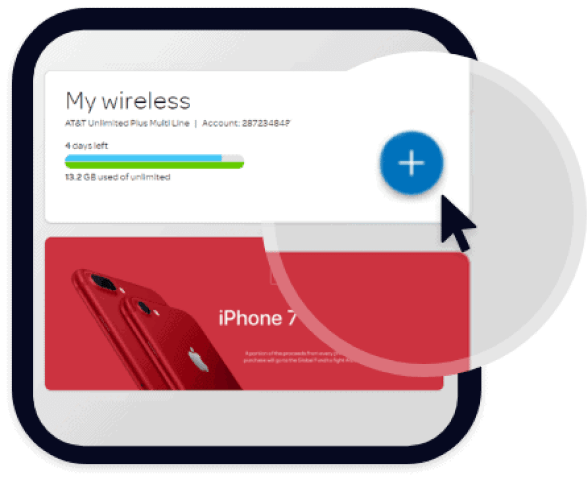
Select the device with the protection Plan under My Devices & Features.
Click on Manage Device & Features and expand AT&T Mobile Protection Pack, AT&T Mobile Insurance or AT&T Protect Advantage (depending on which product you have) by clicking the See Features button.
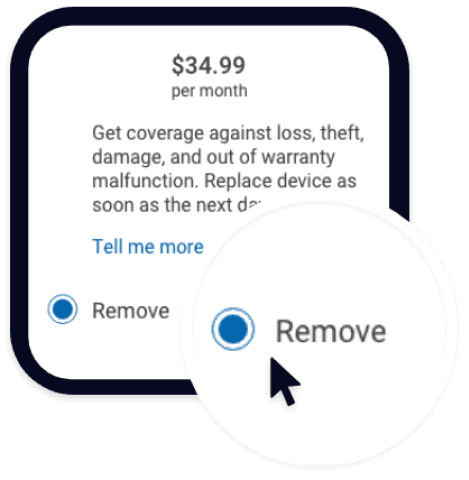
Click Remove at the bottom of the AT&T Mobile Protection Pack (image below).
From your AT&T phone, call AT&T customer support at 1-800-331-0500 (available 24/7).
When prompted say “cancel my mobile insurance plan.
Confirm your cancellation, and you’re all set.
Click here to go to the Verizon website.
Log in to your account.
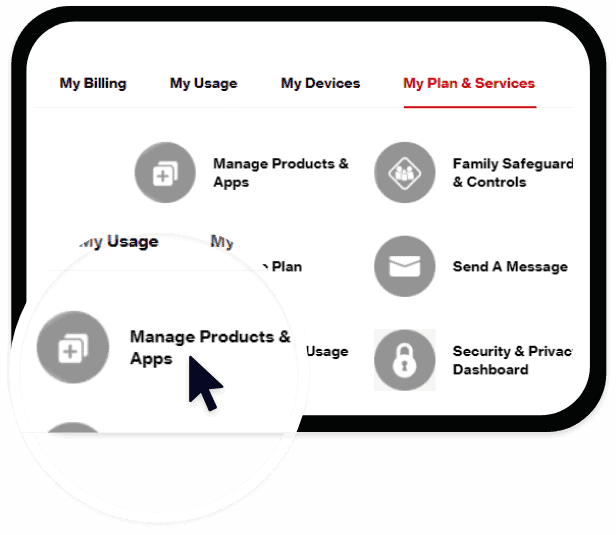
Go to My Plan & Services, then Manage Products & Apps, then click Manage Your Products (see image below).
Scroll to “Total Mobile Protection” and click the Remove from Account button in the upper right corner (see the image below).
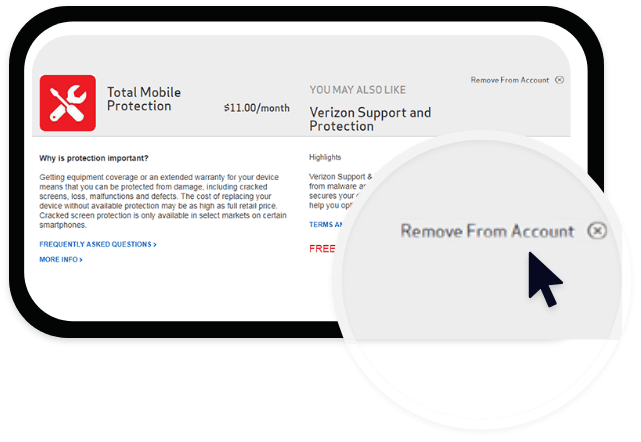
Click “Decline Equipment protection” to confirm your cancellation.
From your Verizon phone, call Verizon customer support at 1-800-922-0204 or by dialing *611 (6 am to 11 pm, Mon-Sun)
When prompted, say “Cancel mobile protection plan.”
When connected with an agent, ask to cancel your mobile protection plan.
Click here to go to the T-Mobile website.
Log in to your account.
At the top of the page, click the “Plan” link.
On the Plans and Services page, click “Change Services.”
Scroll down to Premium Handset Protection.
Uncheck the box for JUMP™
Scroll to the bottom of the page and click “Next.”
You’ll be asked to review the changes you’ve made. Check the box to agree to the terms and conditions, then click “Submit Changes” to confirm your cancellation.
From your T-Mobile phone, call T-Mobile customer support at 1-800-937-8997 or by dialing 611 (6am to 10pm, 7 days a week).
Enter your mobile number.
Tell the customer service agent that you want to cancel your insurance.
Call Geek Squad customer support at 1-800-GEEKSQUAD (433 - 5778) (available 24/7).
When prompted, say “cell phone.”
When prompted, say “cancellation.”
When connected with an agent, ask to cancel your protection plan.
Login to your SquareTrade account, go to the “My Warranties” tab, and select “Manage.” A number of tabbed options will appear below.
From here, you can use the menus to check the status of a particular Care Plan or see them all at once. You can also click on one of the tabbed options in order to cancel it.